![Halda Logo Black Tight-2.svg]](https://info.halda.ai/hubfs/Halda%20Logo%20Black%20Tight-2.svg)
Topic instructions tell AI Search how to handle specific kinds of questions from your visitors — filling in answers your website doesn't cover, pointing the AI at preferred URLs, or polishing the responses it generates. This guide walks you through creating one.
What a topic instruction does
Each instruction is built around a classification description — a short trigger that the AI matches against incoming questions. When a question matches, the instruction kicks in and shapes the response.
There are three types:
| Type | When to use it |
|---|---|
| Content Gap | The answer isn't on your website and you want the AI to respond with information you provide directly. |
| URL Suggestion | You want the AI to search one or more specific pages when answering this kind of question. |
| Enhancement | The AI already finds a decent answer, but you want to layer extra detail on top before it's returned. |
Step 1: Open the Topic Instructions page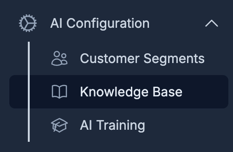
- In the left navigation, go to AI Configuration.
- Open Knowledge Base.
- Select the Topic Instructions tab.
You'll see a list of any existing instructions along with usage metrics at the top of the page.
Don't see the Add Instructions button? You're missing the Edit Topic Instructions permission. Ask an account owner to grant it.
Step 2: Create a new instruction
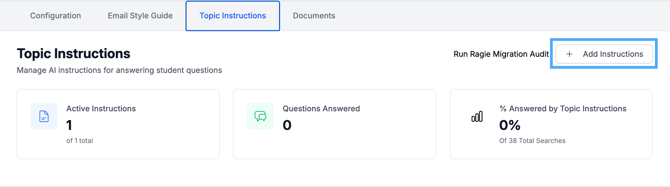
Click Add Instructions in the top-right of the page. A modal opens asking you to choose the type:
- Content Gap
- URL Suggestion
- Enhancement
Select the one that matches your goal (see the table above) and click Next.
Step 3: Fill in Basic Information
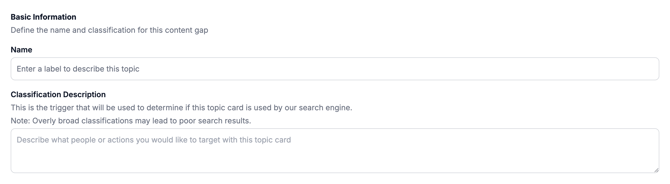
Both fields here are required.
- Name (up to 36 characters) — A short label for your own reference. Example: "Tuition payment plans".
- Classification Description (up to 255 characters) — This is the trigger. Describe the kind of question or visitor this instruction should match. Keep it specific; overly broad descriptions can pull the instruction into unrelated answers. Example: "Prospective undergraduate students asking how to set up a monthly tuition payment plan."
Step 4: Configure the response
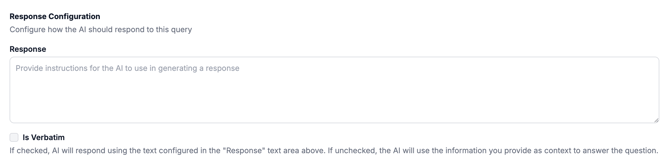
This section changes based on the type you chose in Step 2.
For Content Gap
- Response (required) — The information you want the AI to use when answering. Write it as the source of truth, not as a prompt.
- Is Verbatim (checkbox) — Leave off to let the AI rephrase your text naturally for each question. Turn on to make the AI quote your response word-for-word.
For URL Suggestion
- No response text is needed — the AI will read the URLs you provide in Step 5.
For Enhancement
- Enhancement Instructions (required) — Describe how the AI should modify or augment an answer it has already found. Example: "Always close with a link to schedule a campus visit."
Step 5: Add Source Pages (Content Gap and URL Suggestion only)

If your instruction type uses source pages, you can attach up to 5 URLs the AI should reference.
- Click + Add Source Page.
- Enter a full URL, e.g.
https://yourwebsite.edu/admissions. - Repeat for additional pages, up to 5.
URL Suggestion only — Is Limited to Given URLs: Check this box to restrict the AI to only the URLs you listed. Leave it unchecked to let the AI also pull from other pages on your site when relevant.
Step 6: Set Publishing & Expiration
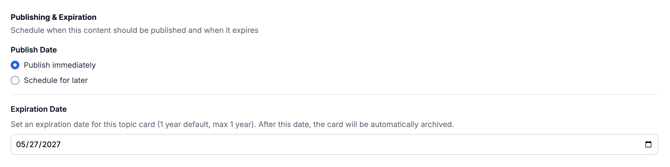
- Publish Date — Pick one:
- Publish immediately — Goes live as soon as you click Save and Publish.
- Schedule for later — Choose a future date (up to one year out). The instruction will publish automatically on that date.
- Expiration Date (required) — Defaults to one year from today. After this date the instruction is automatically archived. Maximum is one year out.
Step 7: Choose which segments see it
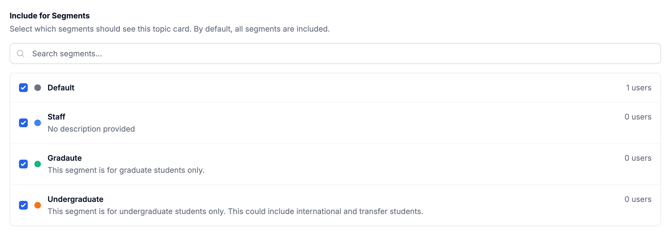
The Include for Segments section lists every customer segment on your account. By default, all are included.
- Use the search box to filter segments.
- Uncheck any segment that should not see this instruction. Checked = included.
Step 8: Save

You'll see two buttons at the bottom:
- Save as Draft — Saves the instruction without publishing. It won't affect any AI Search responses until you come back and publish it.
- Save and Publish (or Save and Schedule if you picked a future date) — Publishes the instruction so AI Search starts using it. Halda will sync it to the search engine in the background.
You'll see a confirmation message when the save succeeds.
Editing later
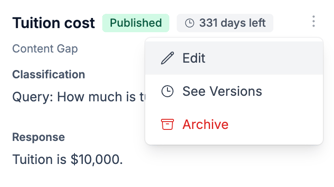
Topic instructions are versioned. When you edit a published instruction, your changes are saved as a new version — the prior version stays in the history. From the edit modal you'll see Save as Draft Version and Publish New Version instead of the create buttons.
Tips for good instructions
- Be narrow with classifications. A description like "Questions about anything" will get matched against everything and degrade answer quality.
- Pick the right type. Use Content Gap when the answer truly isn't on your site; use Enhancement to refine answers the AI already finds.
- Verbatim is for compliance-sensitive copy. Use it for legal language, policy quotes, or anything that must appear exactly as written.
- Review on expiration. When an instruction is about to expire, decide whether to extend, edit, or let it archive — outdated guidance can quietly degrade your AI's answers.
Need help configuring your topic instructions? Reach out to your Partner Success Consultant for additional assistance.