![Halda Logo Black Tight-2.svg]](https://info.halda.ai/hubfs/Halda%20Logo%20Black%20Tight-2.svg)
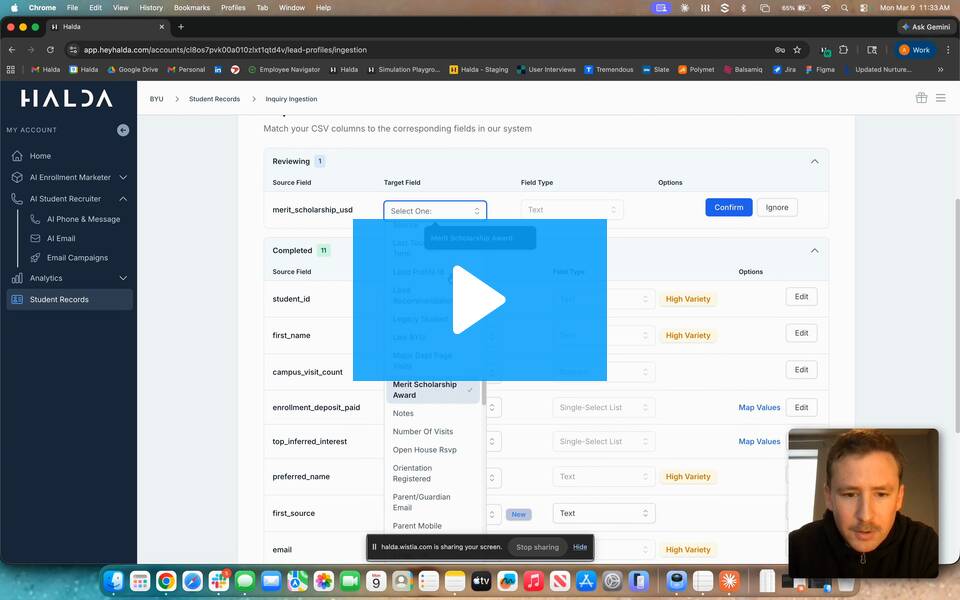
Student Record Import Process
The video above walks through how to import student records into Halda, either via a Slate web services query or a CSV upload. Here's what's covered:
Two ways to bring students in:
- Web services (Slate schools): Connect your query endpoint with credentials. Set an optional cutoff date or record cap to control how long or how many records Halda ingests. The connection stays active and can be paused or edited anytime.
- CSV upload: Browse and upload your file. Halda previews it before processing so you can catch issues early.
Field mapping:
Halda's AI reads every column in your file and recommends how each field should map to a Halda field. You can review and confirm or override. Mappings are saved, so repeat imports get faster over time.
-
Field value mapping: For fields like majors stored as codes, map those values to their full names so Halda's AI can personalize content correctly. You can also upload a translation file to handle large value sets in bulk.
-
Field categorization: Halda categorizes fields as geographic, behavioral, interest-based, or time-based. It makes an initial recommendation — you just review and fill in anything flagged.
Naming your import:
Give each import a descriptive name (include a date). This name attaches to every student record in that batch, making it easy to find and filter later.
Creating an audience list:
- CSV imports: Use the filter by import name in Student Records, then save it as a named audience list for campaigns.
- Web services imports: No extra steps needed — students auto-populate as an audience list directly in Campaigns.
⏱ After uploading, allow ~30 minutes for records to appear in Student Records.
Once your student records have been uploaded, the audience will be available in the campaign builder.
If you have any questions about uploading student records in Halda, please reach out to your Account Manager.