![Halda Logo Black Tight-2.svg]](https://info.halda.ai/hubfs/Halda%20Logo%20Black%20Tight-2.svg)
Step 1: Create a Meta Business Manager Account
If your university doesn't already have one, you'll need to create a Meta Business Manager account. This account is required to manage your WhatsApp Business profile.
- Visit https://business.facebook.com/ and log in with your Facebook credentials.
- Click "Create Account" and enter your university's name, your name, and your email address.
- Complete any additional business details (address, phone, etc.).
- Verify your email address through the confirmation email Meta sends.
- Note that the email might not show up in your primary inbox.

Step 2: Create a WhatsApp Business Account (WABA)
- In Business Manager, go to Business Settings.
- Click Go to Settings in the middle of the page or Settings in the sidebar
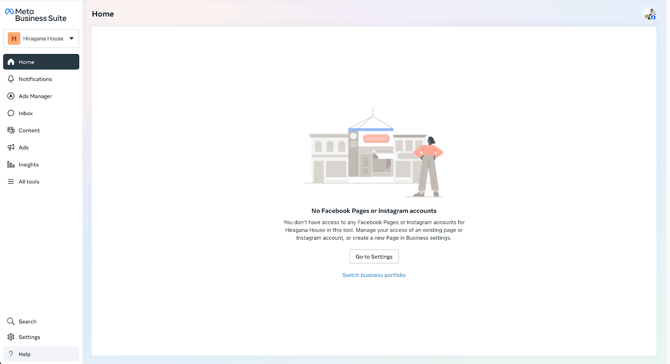
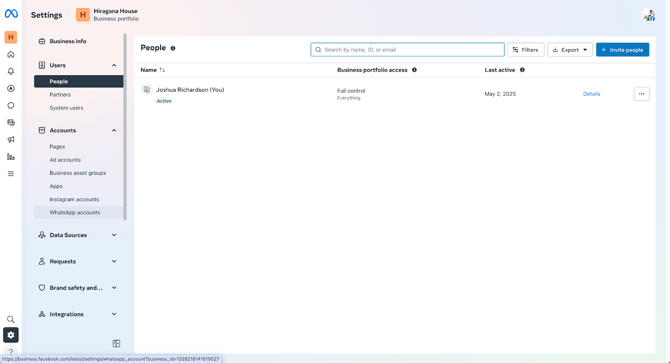
- Navigate to Accounts > WhatsApp Accounts.
- Click WhatsApp Accounts in the sidebar
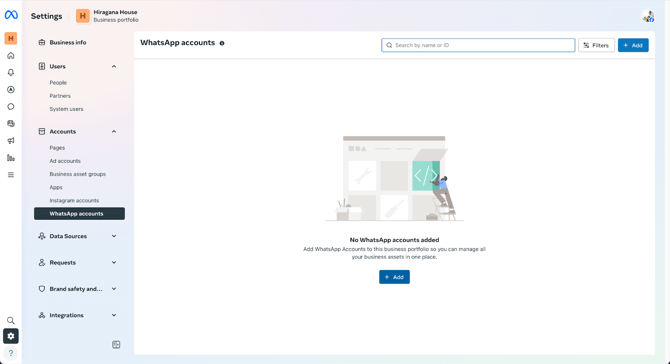
- Click "Add" and select "Create a new WhatsApp Business Account."
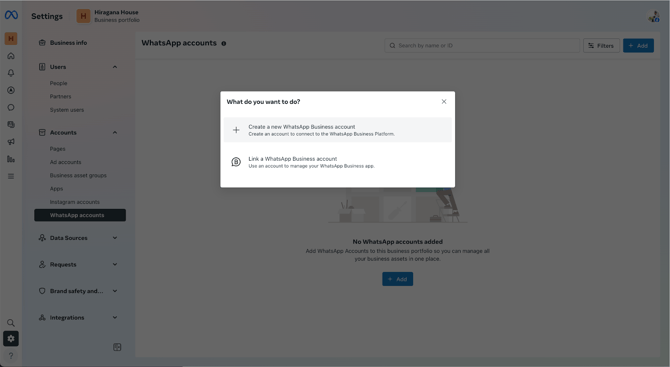
- Enter your university name as the account name and follow the prompts.
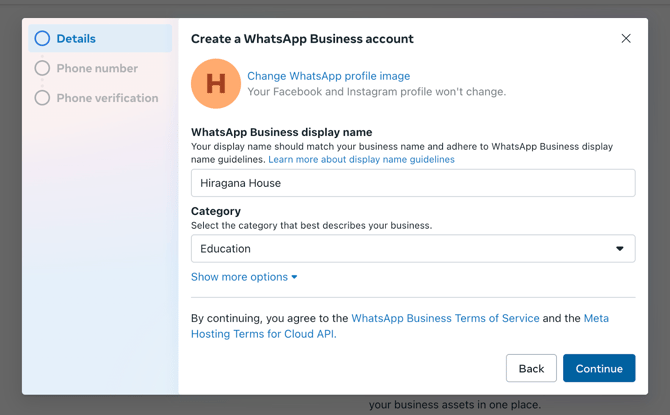
- This part will require you to be in contact with Halda as you do it because they will provide your phone number and the verification code when you request to verify. This can be added later if needed, and you can just use the test number until you’re ready to go, but the test number will be useless. You need to verify the real number before we can send any messages on your behalf.
- Accept the WhatsApp Business terms and complete creation.
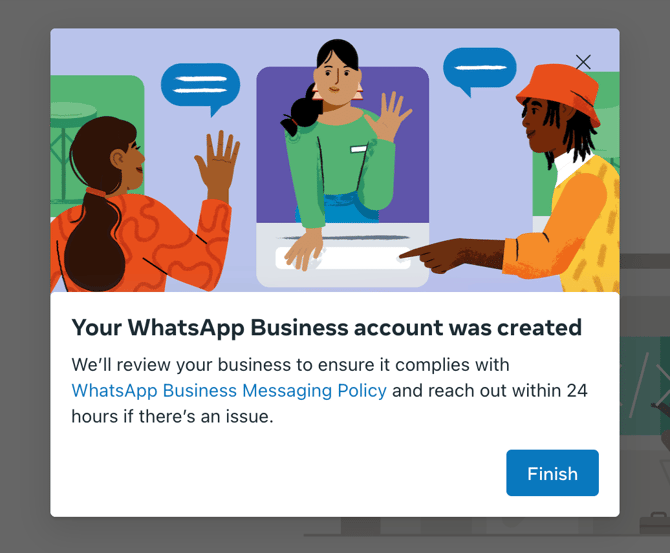
Step 3: Add and Verify Your WhatsApp Phone Number (if you didn’t in the previous step)
- Go to WhatsApp Manager in your Business Manager.
- Under Phone Numbers, click "Add Phone Number."
- Enter a valid number (not currently used in WhatsApp Messenger or Business app).
- Set your university name as the Display Name.
- Choose to receive a 6-digit code via SMS.
- Enter the code to verify the number.
Note: If the number is already registered in the WhatsApp app, it must be removed before continuing.
Step 4: Grant Halda Access to Your WhatsApp Account
- In Business Manager, go to Business Settings > Users > Partners.
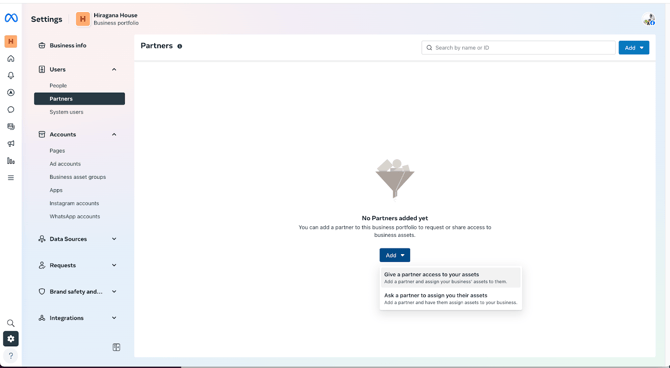
- Click "Add", then "Give a partner access to your assets."
- Enter Halda's Business Manager ID (240444950273701).
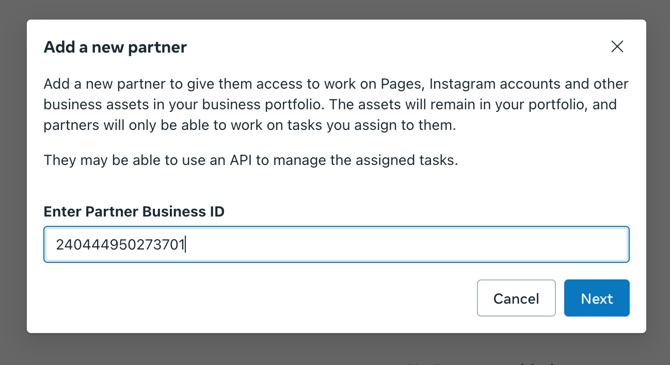
- Grant access to your WhatsApp Business Account and Phone Number.
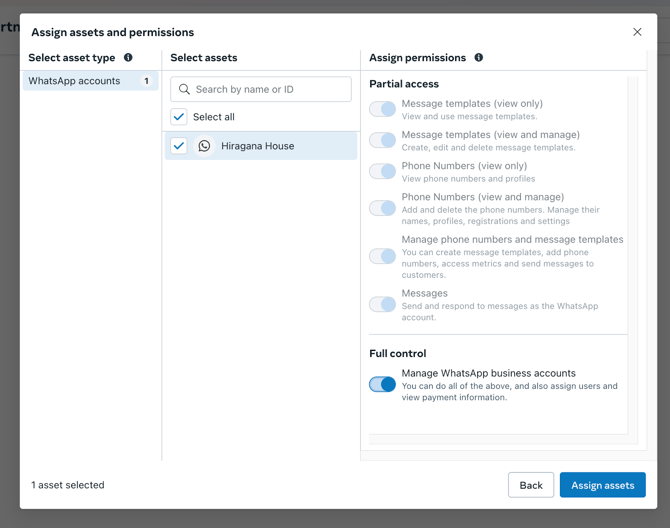
- Assign permissions such as Admin or Full Control.
- Click Confirm and notify Halda that access has been granted.
Step 5: Share Required IDs with Halda
Please share the following with your Halda contact:
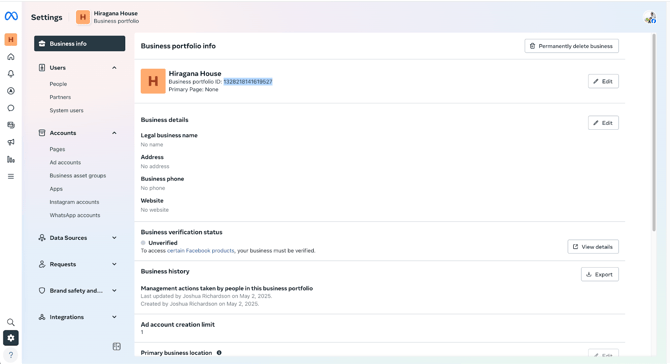
- Your Meta Business Manager ID (found under Business Settings > Business Info).
- Your WhatsApp Business Account ID (WABA ID) (found in WhatsApp Manager).
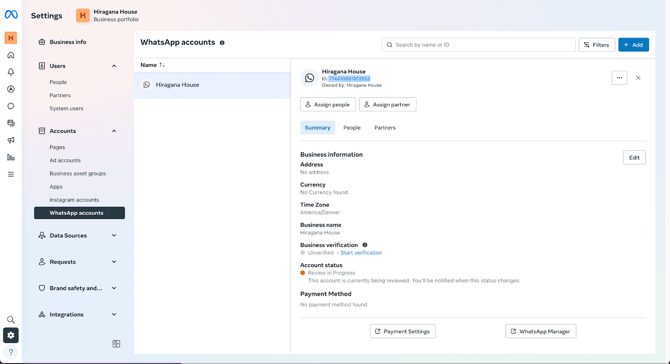
Halda will use this information to connect your account and send messages on your behalf.
Step 6: Complete Meta Business Verification (if not already done)
- Go to Business Settings > Security Center
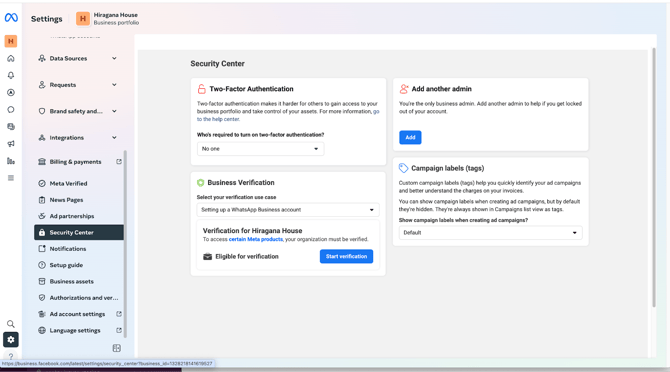
- Click "Start Verification".
- Click “Get Started”.
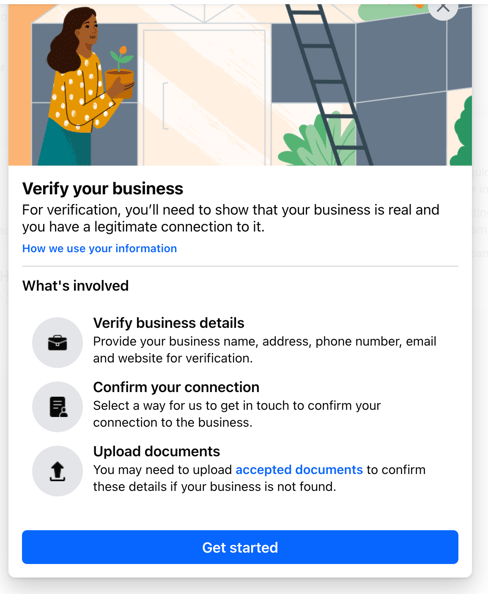
- Follow the prompts and answer questions (company name, address, etc.)
- Submit required documentation (e.g., proof of university registration).
Verification is required before we can start sending messages on your behalf.
Step 7: Stay Compliant with WhatsApp Policies (Halda will handle this)
- Only message students who have opted in to receive messages via WhatsApp.
- Use approved message templates for notifications.
- Follow WhatsApp’s Business and Commerce policies.
Halda will take care of this step
If you have any questions during the setup process, reach out to your Halda account representative. We’re here to help ensure everything runs smoothly and your students receive personalized, timely communication via WhatsApp.