---
title: Google Analytics Integration Set Up
description: This guide will walk you through the simple steps to set up Google Analytics to receive events from Halda using Google Tag Manager (GTM) and a data layer.
---
[Skip to content](https://info.halda.ai/knowledge/setting-up-google-analytics#main-content)
[More support](https://info.halda.ai/knowledge/kb-tickets/new?hsLang=en)
[![Halda Logo Black Tight-2.svg\]](https://info.halda.ai/hubfs/Halda%20Logo%20Black%20Tight-2.svg)](https://info.halda.io/knowledge?hsLang=en)
- [AI Campaign Agent](https://info.halda.ai/knowledge/ai-campaign-agent)
Show submenu for AI Campaign Agent
- [AI Campaign Email](https://info.halda.ai/knowledge/ai-campaign-agent#ai-email-campaigns)
- [Integrations](https://info.halda.ai/knowledge/ai-campaign-agent#integrations)
- [AI Website Agent](https://info.halda.ai/knowledge/ai-website-agent#main-content)
Show submenu for AI Website Agent
- [AI Forms](https://info.halda.ai/knowledge/ai-website-agent#ai-forms)
- [AI Hub](https://info.halda.ai/knowledge/ai-website-agent#ai-hub)
- [AI Search](https://info.halda.ai/knowledge/ai-website-agent#ai-search)
- [Integrations](https://info.halda.ai/knowledge/ai-website-agent#direct-integrations)
- [Always On Recruiter Agent](https://info.halda.ai/knowledge/always-on-recruiter-agent#main-content)
Show submenu for Always On Recruiter Agent
- [AI Comeback Email](https://info.halda.ai/knowledge/always-on-recruiter-agent#ai-email)
- [AI SMS and Phone](https://info.halda.ai/knowledge/always-on-recruiter-agent#ai-sms-and-phone)
- [Integrations](https://info.halda.ai/knowledge/always-on-recruiter-agent#integrations)
- [Analytics](https://info.halda.ai/knowledge/analytics#main-content)
- [Settings](https://info.halda.ai/knowledge/settings#main-content)
- [Student Records](https://info.halda.ai/knowledge/student-records)
- [What's New](https://info.halda.ai/knowledge/whats-new)
Open main navigation
Close main navigation
- [AI Campaign Agent](https://info.halda.ai/knowledge/ai-campaign-agent)
Show submenu for AI Campaign Agent
- [AI Campaign Email](https://info.halda.ai/knowledge/ai-campaign-agent#ai-email-campaigns)
- [Integrations](https://info.halda.ai/knowledge/ai-campaign-agent#integrations)
- [AI Website Agent](https://info.halda.ai/knowledge/ai-website-agent#main-content)
Show submenu for AI Website Agent
- [AI Forms](https://info.halda.ai/knowledge/ai-website-agent#ai-forms)
- [AI Hub](https://info.halda.ai/knowledge/ai-website-agent#ai-hub)
- [AI Search](https://info.halda.ai/knowledge/ai-website-agent#ai-search)
- [Integrations](https://info.halda.ai/knowledge/ai-website-agent#direct-integrations)
- [Always On Recruiter Agent](https://info.halda.ai/knowledge/always-on-recruiter-agent#main-content)
Show submenu for Always On Recruiter Agent
- [AI Comeback Email](https://info.halda.ai/knowledge/always-on-recruiter-agent#ai-email)
- [AI SMS and Phone](https://info.halda.ai/knowledge/always-on-recruiter-agent#ai-sms-and-phone)
- [Integrations](https://info.halda.ai/knowledge/always-on-recruiter-agent#integrations)
- [Analytics](https://info.halda.ai/knowledge/analytics#main-content)
- [Settings](https://info.halda.ai/knowledge/settings#main-content)
- [Student Records](https://info.halda.ai/knowledge/student-records)
- [What's New](https://info.halda.ai/knowledge/whats-new)
- [More support](https://info.halda.ai/knowledge/kb-tickets/new)
Welcome to the Halda Knowledge Base.
- There are no suggestions because the search field is empty.
1. [Halda Knowledge Base](https://info.halda.ai/knowledge?hsLang=en)
2. [Analytics](https://info.halda.ai/knowledge/analytics?hsLang=en)
3. [Integrations](https://info.halda.ai/knowledge/analytics?hsLang=en#integrations)
June 18, 2026
# Google Analytics Integration Set Up
## This guide will walk you through the simple steps to set up Google Analytics to receive events from Halda using Google Tag Manager (GTM) and a data layer.
### **Step 1: Add the Data Layer to Your Header**
To ensure Google Tag Manager can process events from Halda, you need to add the following script to your website's `` section above your Google Tag Manager script:
```
```
Your `` section should look like this after adding the script:
```
```
**Important:** Replace GTM-XXXXXX with your actual Google Tag Manager ID.
#### **Example Event Structure**
Halda pushes events to the `dataLayer` in the following format:
```
JavaScriptdataLayer.push({ 'event': 'HaldaFormSubmit' // })
```
The example above is just one of the events that can be passed - see below for the full list of possible events.
### **Step 2: Configure Events in Halda**
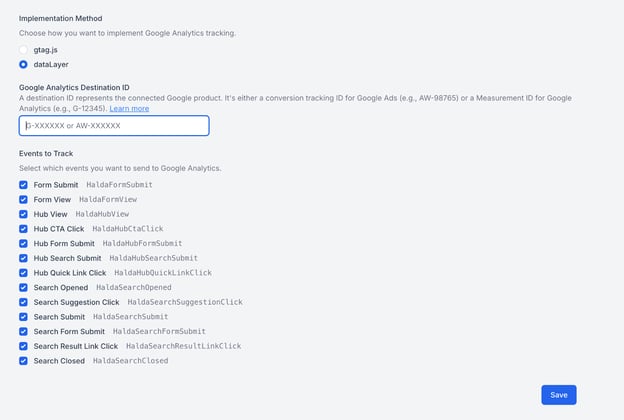
1. **Navigate to the Integrations page** in Halda by clicking the integration icon in the top-right corner.
2. **Select your Google Analytics integration** (either add a new one or edit an existing integration).
3. **Change the tracking method** from **gtag** to **Data Layer**.
4. **Enter your Google Analytics Destination ID**.
5. **Select the specific events** you want Halda to track.
### **Step 3: Create Triggers in Google Tag Manager**
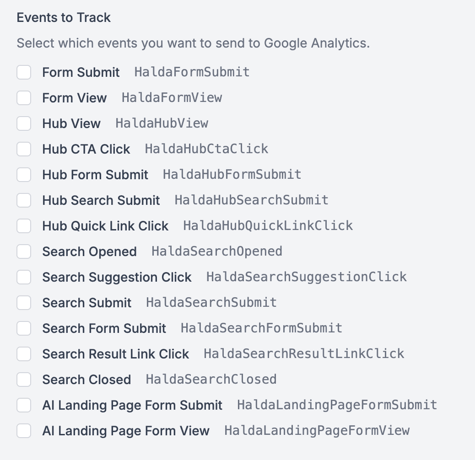
You’ll need to create a **Custom Event Trigger** for each type of Halda event you want to track. Below are the events Halda can send:
#### **How to Create a Trigger**
1. Log in to **Google Tag Manager**.
2. Select your container.
3. Navigate to **Triggers** \> **New**.
4. Choose **Trigger Type: Custom Event**.
5. Set the **Event Name** to match **one of the events listed above** (e.g., HaldaFormView).
6. Under **Trigger fires on**, select **All Custom Events**.
7. Click **Save**.
💡 **Pro Tip:** You can create a separate trigger for each event or combine multiple events into one trigger using regular expressions (if you want to fire the same tag for several events).
### **Step 4: Create Tags in Google Tag Manager**
For each Halda event you want to track, you’ll need to create a **GA4 Event Tag**. Here’s how:
1. Navigate to **Tags** \> **New**.
2. Select **Tag Configuration \> Google Analytics: GA4 Event**.
3. Enter your **Google Analytics Measurement ID**.
4. Under **Event Name**, enter the exact event name you’re tracking, such as:
- HaldaFormView
- HaldaFormSubmit
- HaldaSearchView
- HaldaSearchSubmit
- HaldaHubView
- HaldaCTA
- HaldaFormSubmit (Hub form submissions)
- HaldaSearchSubmit (Hub search submissions)
- HaldaQuickLink
- etc..
5. Click **Triggering** and select the corresponding **Custom Event Trigger** you created in Step 2.
6. Click **Save**.
### **Step 5: Publish Your Changes**
1. Click **Submit** in Google Tag Manager.
2. Add a name and description for your changes.
3. Click **Publish**.
If you have any questions, feel free to reach out to our support team at support@halda.ai — we’re happy to help you get set up!
- [Getting Started](https://info.halda.ai/knowledge/getting-started?hsLang=en#main-content)
- [Start Here](https://info.halda.ai/knowledge/getting-started?hsLang=en#start-here)
- [Halda Best Practices](https://info.halda.ai/knowledge/getting-started?hsLang=en#halda-best-practices)
- [AI Campaign Agent](https://info.halda.ai/knowledge/ai-campaign-agent?hsLang=en#main-content)
- [AI Landing Pages](https://info.halda.ai/knowledge/ai-campaign-agent?hsLang=en#ai-landing-pages)
- [AI Email Campaign Creation](https://info.halda.ai/knowledge/ai-campaign-agent?hsLang=en#ai-email-campaign-creation)
- [AI Email Campaign Record Ingestion and Suppression](https://info.halda.ai/knowledge/ai-campaign-agent?hsLang=en#ai-email-campaign-record-ingestion-and-suppression)
- [AI Email Campaign Management](https://info.halda.ai/knowledge/ai-campaign-agent?hsLang=en#ai-email-campaign-management)
- [AI Email Campaign Integrations](https://info.halda.ai/knowledge/ai-campaign-agent?hsLang=en#ai-email-campaign-integrations)
- [Reporting](https://info.halda.ai/knowledge/ai-campaign-agent?hsLang=en#reporting)
- [AI Website Agent](https://info.halda.ai/knowledge/ai-website-agent?hsLang=en#main-content)
- [AI Forms](https://info.halda.ai/knowledge/ai-website-agent?hsLang=en#ai-forms)
- [AI Hub](https://info.halda.ai/knowledge/ai-website-agent?hsLang=en#ai-hub)
- [AI Search](https://info.halda.ai/knowledge/ai-website-agent?hsLang=en#ai-search)
- [Direct Integrations](https://info.halda.ai/knowledge/ai-website-agent?hsLang=en#direct-integrations)
- [Other Integration Options](https://info.halda.ai/knowledge/ai-website-agent?hsLang=en#other-integration-options)
- [Always On Recruiter Agent](https://info.halda.ai/knowledge/always-on-recruiter-agent?hsLang=en#main-content)
- [AI Comeback Email](https://info.halda.ai/knowledge/always-on-recruiter-agent?hsLang=en#ai-comeback-email)
- [AI SMS and Phone](https://info.halda.ai/knowledge/always-on-recruiter-agent?hsLang=en#ai-sms-and-phone)
- [Integrations](https://info.halda.ai/knowledge/always-on-recruiter-agent?hsLang=en#integrations)
- [Student Records](https://info.halda.ai/knowledge/student-records?hsLang=en)
- [Analytics](https://info.halda.ai/knowledge/analytics?hsLang=en#main-content)
- [Conversion Analytics](https://info.halda.ai/knowledge/analytics?hsLang=en#conversion-analytics)
- [Campaign Tracking](https://info.halda.ai/knowledge/analytics?hsLang=en#campaign-tracking)
- [AI SEO](https://info.halda.ai/knowledge/analytics?hsLang=en#ai-seo)
- [Integrations](https://info.halda.ai/knowledge/analytics?hsLang=en#integrations)
- [Settings](https://info.halda.ai/knowledge/settings?hsLang=en#main-content)
- [AI Knowledge Base](https://info.halda.ai/knowledge/settings?hsLang=en#ai-knowledge-base)
- [Notifications](https://info.halda.ai/knowledge/settings?hsLang=en#notifications)
- [Account Settings](https://info.halda.ai/knowledge/settings?hsLang=en#account-settings)
- [Script Install](https://info.halda.ai/knowledge/settings?hsLang=en#script-install)
- [Fields](https://info.halda.ai/knowledge/settings?hsLang=en#fields)
- [Additional Information](https://info.halda.ai/knowledge/additional-information?hsLang=en)
- [Troubleshooting](https://info.halda.ai/knowledge/troubleshooting?hsLang=en#main-content)
- [AI Campaign Agent](https://info.halda.ai/knowledge/troubleshooting?hsLang=en#ai-campaign-agent)
- [What's New](https://info.halda.ai/knowledge/whats-new?hsLang=en)
- [Privacy Policy](https://www.halda.ai/privacy)
- [Terms & Conditions](https://www.halda.ai/terms-conditions)
- [About Halda](https://www.halda.ai/platform)
- [App Login](https://app.heyhalda.com/)
[](http://Halda.io)
[halda.ai](http://halda.ai)
Copyright © 2026, Halda