![Halda Logo Black Tight-2.svg]](https://info.halda.ai/hubfs/Halda%20Logo%20Black%20Tight-2.svg)
1. Service Account Setup
- Create a Service Account:
- Create a new service account in Slate.
- On the first page of the user information, set the user type to Service Account (do not select Service Account Remote).
- Use the email integrations@halda.ai as the username and user id.
- Complete all required fields accurately.
2. Configuring SFTP Access
- Navigate to the Roles Tab:
- After creating the service account, go to the Roles tab.
- Enable SFTP Access:
- Scroll down to the SFTP Access section and check the box to enable it.
- In the Allowed Networks field, enter: 32.185.205.161
- Previously, 174.129.240.180 was the IP Address Halda used for this. If you have this IP listed in the Halda SFTP Access settings, please do NOT remove this IP. Instead, add the new IP ( 32.185.205.161 ) to match the image below.

-
- Add password authentication by:
- Resetting the password for the SFTP credentials.
- Inputting the SSH key from your Halda account. To find this key, navigate to the integrations page in the Halda app, select "connect" for a Slate integration, and choose SSH as the authenticator. This will show you the SSH key and allow you to copy it to be pasted in the SFTP Access section of the service account in Slate.
- Add password authentication by:
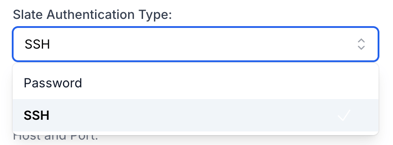
-
- Important: Only share the SFTP credentials (username and password) generated under the SFTP Access settings—not the primary service account credentials—with your Implementation Specialist.
- Save Changes:
- Save the service account once SFTP access is configured.
Once you have set up the SFTP Access, share the username and password credentials with your account manager or navigate to the integrations page in the Halda app, select "connect" for a Slate integration, and input the credentials directly.
You will be required to input all required fields for the integration in order to save it (Integration Name, Frequency, Destination Directory, Username, and Password).
The recommended inputs for a Slate integration include:
Name: (Instance Name) Slate Connection
Frequency: Immediately
Destination Directory: incoming/halda
The username and password will come from the service account SFTP access section unless you opt to use the SSH key.
3. Custom Field Configuration
- Create a New Field:
- In Slate, create a new custom field named Halda ID.
- This is where we will map the Lead Profile ID field that is sent with all Halda leads. This is key to our query set up, so to avoid any type of retroactive refresh, we will build this prior to configuring our source format and mapping.
4. Configuring the Source Format
- Reference Guide:
- Please refer to the Slate article titled "Creating a new source format from scratch" for detailed guidance.
- Format Definition Tab:
- Enter the following XML: <layout type="convert" h="1" />
- Import Automation Settings:
- Set the Import Path/Mask to: halda/halda*.csv
- Note: The specific file name will be appended once Halda’s tools are published.
5. Data Directory & Test File
- Data Directory:
- After your integration call, the Halda Implementation Specialist will provide a Data Directory in the form of a Google Sheet.
- This sheet is organized with individual tabs for each Halda form (both published and to-be-published).
- The Data Directory will list the questions being asked and the corresponding picklists for responses.
- Test File:
- A test file will be provided via email, showing all fields that will be transmitted.
Please note that the Data Directory and test file will be sent only after the Account Manager confirms that all form edits are complete.
6. Setting Up the Query in Slate
Once you’ve confirmed that data is flowing correctly from Halda to Slate, import the following Suitcase ID:
- 81d29bd1-419b-45fd-ae97-8a0d4ff7b484:hal
-
- Update the Halda ID Filter and Export Field to match your custom Halda ID field.
- In the Halda Stage Export field, adjust the filters to properly categorize your application and admission stages according to your processes.
- Ex. If you do not track enrollments inside of Slate, delete that stage from the export.
- Execution:
- Set the query to active and run it so that the file is sent to the SFTP server.
- The Halda Implementation Specialist will verify the file’s presence using FileZilla and download the file.
7. Final Verification
- After these steps, the Halda team will complete the final verification:
- They will use FileZilla to confirm file transfers and inspect the imported data.
- Any discrepancies or issues should be promptly communicated with the Halda Implementation Specialist.
By following these updated instructions, you will ensure a smooth and secure integration between Halda and Slate.
If you have any questions or encounter issues during the process, please contact support@halda.ai for assistance.