![Halda Logo Black Tight-2.svg]](https://info.halda.ai/hubfs/Halda%20Logo%20Black%20Tight-2.svg)
To ensure emails are properly delivered to your campaign audience, an integration with Slate needs to be configured. After the integration has been set up, you are able to send a test email to an existing test record in Slate to confirm emails will process properly. This article will walk you through requirements for sending a test and how to submit a test email to Slate.
Test Email Requirements
In order to successfully send the test email, the following is required.
- A configured AI Campaign
- First Name, Last Name, and Email address for an existing test record in Slate.
- Optional: If you would like to see the email in an inbox instead of in the student timeline, please ensure you have access to the email inbox tied to test record
Please note: The purpose of this test is to confirm that emails are being processed properly, not to analyze the email's content.
To analyze and refine email content, please go to the "Preview" section of the AI Campaign editor.
Submitting the Test Email
Navigate to your AI Campaign and click on the 3 dots in the top right corner of the campaign card. In the menu, select "Slate Integration"
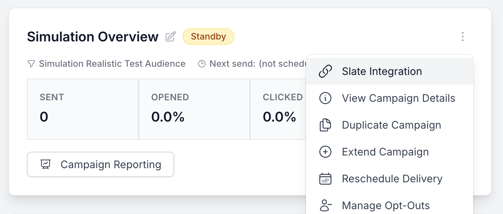
This is where you will input the First Name, Last Name, and Email Address for your Slate test lead. After that information is input, click the "Send Test Email" button.
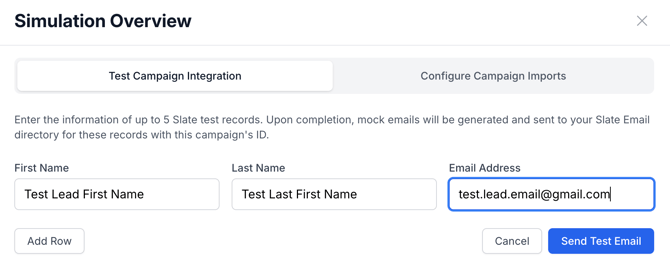
Enter the information of up to 5 Slate test records. Upon completion, mock emails will be generated and sent to your Slate Email directory for these records with this campaign's ID.
Confirming Integration Success
After the files have been picked up by Slate and processed, you will be able to confirm emails were sent to the test leads in the activity timeline. If you have access to the inbox of the test lead, you will be able to see the email in that inbox as well.
If you have any questions, please contact your Account Manage