![Halda Logo Black Tight-2.svg]](https://info.halda.ai/hubfs/Halda%20Logo%20Black%20Tight-2.svg)
Ready to publish your AI Form? Follow this guide to configure your display settings, targeting rules, and trigger preferences to ensure your form appears exactly when and where you want it to.
Where to Find Publish Settings
To access your publishing settings, open the edit view of your form. In the left-hand navigation panel of the form editor, scroll to the bottom and select Publish Settings.
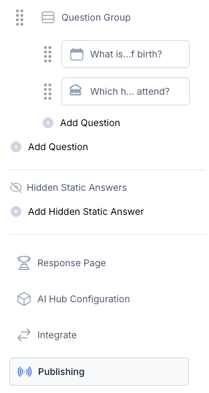
From here, you’ll configure how, where, and when your form appears on your website.
Display Method
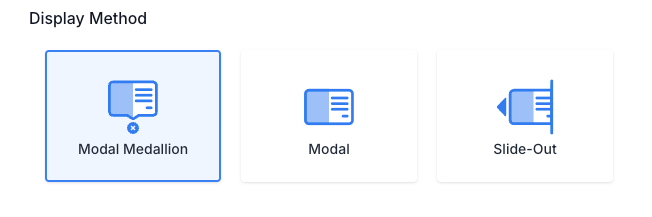
Start by selecting your Display Method. You can choose from:
-
Modal Medallion
-
Modal
-
Slide-Out
The most commonly used option is Modal Medallion, as it provides strong visibility without fully interrupting the visitor experience.
Targeting Information
Next, determine which pages should display your form.
You have two options:
All Web Pages
If selected, your form will appear on every page that includes the Halda script.
This setting is generally not recommended, as it may create overlap with other forms and reduce targeting precision.
Manually Configure Pages
This option allows you to publish your form to specific pages or sections of your site.

When manually configuring:
-
Leave the default “Exact” option to target an individual page.
-
Select “Contains” to target an entire section of your website.
For example:
If you choose Contains university.edu/admissions, the form will display on:
-
university.edu/admissions/tuition -
university.edu/admissions/financial-aid -
Any other page that includes that URL structure
You can add multiple individual pages and/or sections. You may also exclude specific pages within a broader “Contains” rule if needed.
Important: While you can technically publish multiple forms to a single page, only one form will display to a visitor. If a URL already has a form assigned, you will see a yellow caution indicator icon next to that URL after saving your form variant.
AI Form priority defaults to targeting and frequency criteria.
Geotargeting Options
You can refine your publishing settings further with geotargeting.
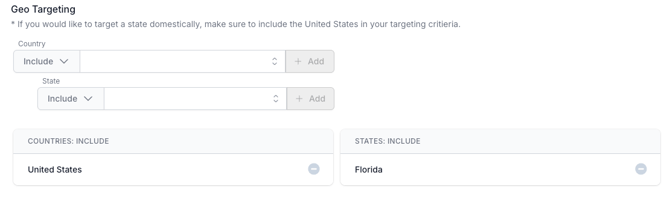
Choose to include or exclude:
-
Specific countries
-
Specific U.S. states
This is especially helpful if you want:
-
A form shown only to domestic students
-
A form shown only to international students
-
A form targeted to students within your regional footprint
Campaign Targeting
You can also publish a form that displays only when a visitor arrives from a specific campaign.

If you use UTM parameters in your email or ad campaigns, enter the relevant UTM values in the Campaign Targeting section.
When Campaign Targeting is enabled:
-
Your existing publishing settings still apply.
-
If multiple links are used in a campaign, ensure the form is published to all relevant pages (or to All Web Pages).
-
If another form is already published to a page, the form tied to the matching UTM values will take precedence when a visitor arrives through that campaign link.
Trigger Settings
Choose what action will trigger your form to appear.
Available trigger options include:
-
After Delay – Displays after a set number of seconds
-
Upon Arrival – Displays immediately when the visitor lands on the page
-
Upon Scroll – Displays when visitors scroll on the page
-
Upon Scroll Up – Displays when visitors scroll upward
-
Upon Scroll Down Percentage – Displays after a visitor scrolls a set percentage down the page
Select the trigger that best aligns with your visitor experience strategy.
Frequency Settings
Finally, choose how often your form appears to visitors.
Options include:
-
Once per Visitor – Displays only the first time a visitor comes to the site
-
Every Visit – Displays every time the visitor returns
-
Every Returning Halda Visit – Displays every visit after the first time the visitor sees a modal or clicks a slide-out
The recommended and default setting is Once per Visitor.
If AI Hub is enabled, returning visitors will see the AI Hub on subsequent visits, and the form published to that page will serve as the default experience.
Just like that, your AI Form is configured and ready to engage prospective students at the right time and place.
Need help with targeting or publishing? Reach out to your Account Manager to review your configuration and ensure everything is optimized for your enrollment goals.