![Halda Logo Black Tight-2.svg]](https://info.halda.ai/hubfs/Halda%20Logo%20Black%20Tight-2.svg)
Once your campaign is live, you will have several views and actions available to you in the "Live" campaign tab. From integrations to extending your campaign, here is everything you can do after hitting "Publish" on your next campaign.
Slate Integration
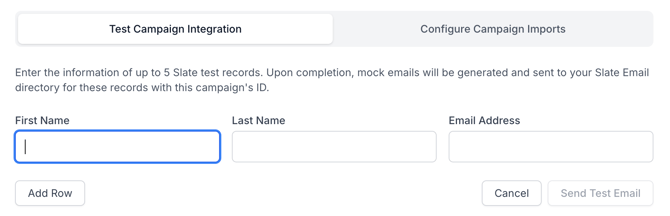
Test Campaign Integration
This tab allows you to verify that the Slate integration is working correctly before relying on it for live sends. You can enter up to 5 test recipient records, each with a first name, last name, and email address.
A legitimate test record from Slate needs to be used for this testing. If you want to see the delivered email in the test record inbox, please ensure you have personal access to the email inbox tied to test record.
When submitted, the system generates a test CSV with the appropriate Slate field mappings and drops it to the configured Slate connection. A success screen confirms delivery. This lets you confirm that the integration pipeline (field mappings → CSV generation → SFTP delivery) is functioning end-to-end before real student data is processed.
Configure Campaign Imports
This tab is used to link the campaign to a specific Slate Message Mailing record. You input the Message Mailing GUID from Slate. This GUID is what Slate uses to track which mailing the campaign's email delivery data should be reported under.
View Campaign Details
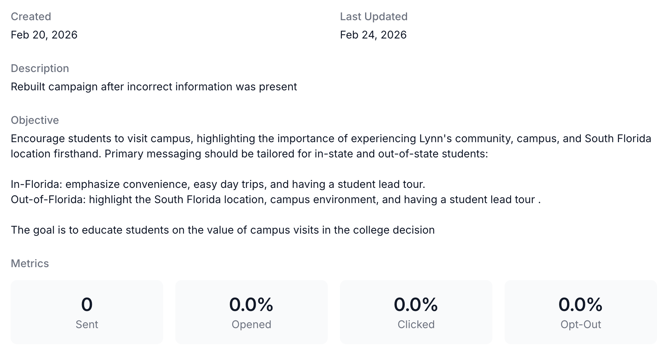
Campaign Details summarize the information configured when the email campaign is initially set up.
Duplicate Campaign
The Duplicate Campaign action creates an exact copy of the campaign as a new Draft. Upon success, you are automatically navigated to the content editing step of the new campaign so you can make any desired modifications before re-launching.
Extend Campaign
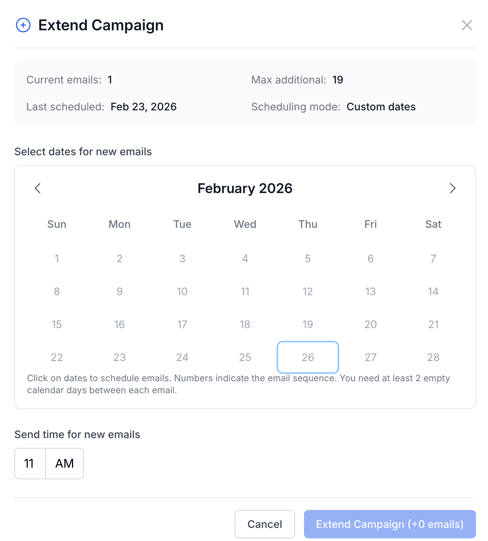
You can extend your campaign by up to the max additional number listed in this view. To add new dates, locate the desired day and select it on the calendar. Please note that there need to be at least 2 empty calendar days between each email. To prevent emails from being schedules closer than 2 days apart, these dates will no longer be clickable.
Select a send time for your new emails, and save your changes with the "Extend Campaign" button.
Reschedule Delivery
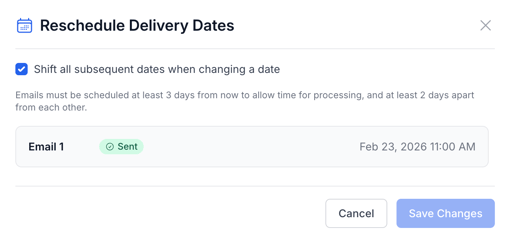
The Reschedule Delivery action allows you to adjust the delivery date and/or time of any future (unsent) emails in the campaign. Emails already sent are shown as read-only with a "Sent" badge.
-
Shift Subsequent Dates toggle — When enabled (default), changing the date of one email automatically shifts all subsequent emails by the same number of days, maintaining the relative spacing of the entire schedule. When disabled, only the individual email you edit is moved.
-
Time editing — Each future email also has a time picker, allowing you to change the send hour independently.
-
Validation — The system enforces that all rescheduled emails must be at least 3 days from the current date and at least 2 days apart from each other. The Save button is disabled until the reschedules email meets the requirements.
Manage Opt-Outs
Displays a table of all lead profiles currently opted out of the campaign. For each profile, it shows their name, email address, the source of the opt-out (Manual, CSV Upload, API, or Web Service), the date/time it occurred, and the user who performed it (or "via API" if automated). An optional reason can be viewed via a tooltip.
You can remove an opt-out for any individual by clicking the trash icon next to their row, which reinstates them into the campaign audience.
Add Opt-outs
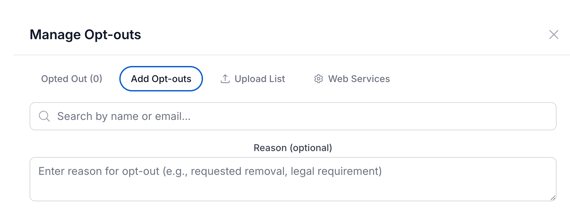
This tab allows you to manually search the campaign's audience and select specific lead profiles to opt out. You can:
- Search by name or email using the search bar (with a 500ms debounce).
- Select one or more profiles using checkboxes.
- Optionally provide a reason for the opt-out (e.g., "requested removal," "legal requirement").
Submitting the selection opts out the chosen profiles and cancels any of their pending emails. The success message confirms how many pending emails were cancelled.
Upload List
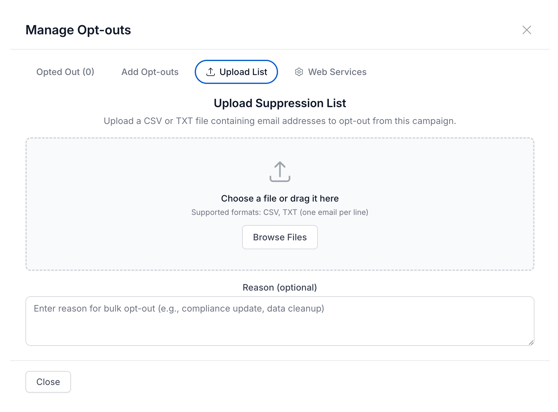
This tab enables bulk opt-outs via file upload. You upload a CSV or TXT file containing one email address per line. The file can be selected via file browser or drag-and-dropped onto the upload zone. You can also provide an optional reason for the bulk suppression.
Upon processing, a results summary shows: how many profiles were suppressed, how many pending emails were prevented from sending, and how many email addresses were not found in the campaign audience.
Web Services
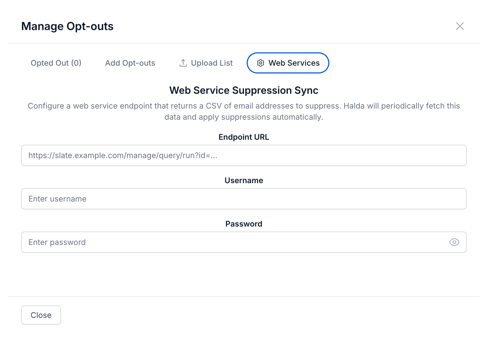
This tab configures an automated, recurring suppression sync via an external web service endpoint. You provide:
- Endpoint URL — A URL that returns a CSV of email addresses to suppress (e.g., a Slate query endpoint).
- Username and Password — Credentials for authenticated access to the endpoint.
Once saved, Halda will periodically fetch data from the endpoint and automatically apply suppressions. The tab also shows the last synced timestamp if a sync has previously occurred. If a configuration already exists, you can update the URL/username and leave the password blank to keep the existing credentials unchanged.
Delete Campaign
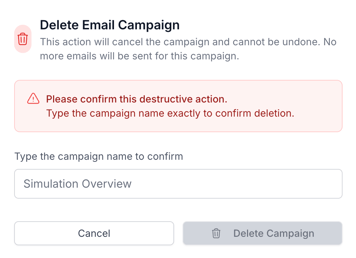
Deleting an email campaign will cancel the campaign, meaning no more emails will be sent. To complete this action, you will be required to type the campaign name into the textbox above the "Delete Campaign" button.
Campaign Reporting
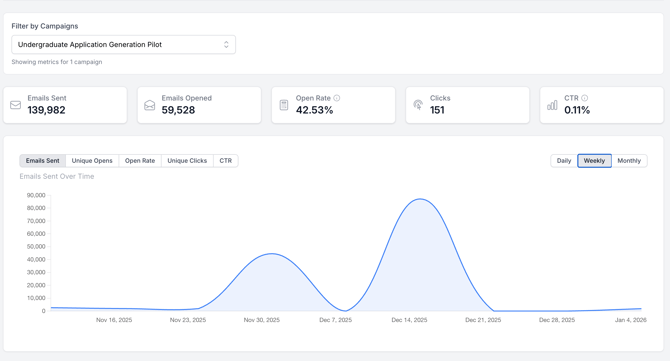
You will be able to view the metrics of all your campaigns in the Campaign Reporting page. Here, you can filter metrics by campaign and see the number of emails sent and opened, email clicks, CTR, and the open rate.
Have questions about managing your live campaigns? Reach out to your Account Manager for additional insights and assistance.