![Halda Logo Black Tight-2.svg]](https://info.halda.ai/hubfs/Halda%20Logo%20Black%20Tight-2.svg)
The Halda Always-On Student Recruiter (AOSR) now supports inbound calls and SMS, giving prospective students 24/7 access to instant answers and support.
Follow this guide to configure your inbound settings and learn best practices for implementation.
Inbound Configuration
To get started, navigate to your Halda AOSR configuration settings and provide your inbound greetings:
Phone Greeting
Add the greeting that you would like your Phone agent to use when an inbound call is received. If a greeting is not added, the following default message will be used:
"Hi! Thanks for calling {Account Name} — this is {Assistant Name}, an AI assistant. I can answer questions, share information about programs or admissions, or help connect you with the right team. What can I help you with today?"

SMS Greeting
Add the greeting that you would like your SMS agent to use when an inbound text is received. If a greeting is not added, the following default message will be used:
"Hi! This is {Assistant Name}, an AI assistant for {Account Name}. Thanks for reaching out—how can I help today?"

Configuring Lead Capture
The AOSR handles inbound contacts differently depending on whether a lead profile already exists in Halda:
| Scenario | System Action |
| Existing Lead Profile | Activity is automatically logged to their existing profile. |
| Unknown Caller | Data is collected, but no profile is created by default. |
Want to create new profiles for unknown callers? Contact your Account Manager to activate lead capture for inbound phone and SMS. Once enabled, the AI will use the following scripts to identify new prospects:
Default Phone Script (If Unknown Phone Number)
|
Assistant: {Customized or Default Greeting}. Before we get started—what’s your first and last name? Caller: [Name] Assistant: Thanks {First Name}. In order to send you any additional resources regarding whatever we talk about today—what’s the best email to use? You can also provide your email via text if you prefer.
|
Default SMS Script (If Unknown Number)
|
Assistant: “{Customized or Default Greeting} Before we get started—what’s your first and last name?” Texter: [Name] Assistant:“Thanks, {First Name}! If you want, we can email you information or next steps we discuss so you don’t lose them later. What’s the best email to use? (Optional.) How can I help today?” |
Sharing First Name, Last Name, and Email Address are not required in order for a prospect to receive information from the AI Agent even if this feature is activated.
SMS Data Capture
For SMS conversations, you are able to capture additional information outside of name and email to store on the lead profile. To configure this additional information capture, navigate to the SMS configuration and toggle "Enable SMS Data Capture" on.
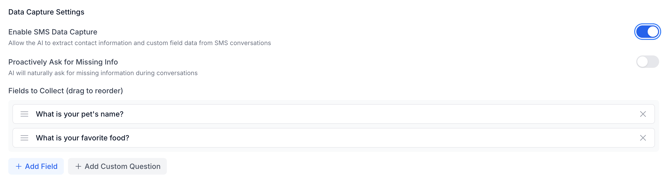
In this section, you can: - Add custom questions - Pull in existing questions from Halda forms - Instruct the AI to proactively ask for missing information Questions are asked in the order listed under "Fields to Collect". Drag and drop to reorder them.
Phone Number Placement Best Practices
We recommend adding your AI Phone Agent to any section of your website were there is a "Contact Us" section. This includes, but is not limited to, your "Contact Us" page, "Contact Us" blocks on the admissions or financial aid pages, and your website footer.
Adding the AI Agent phone number to your team's email signature provides prospective students with even more support during their enrollment journey, especially outside of business hours.
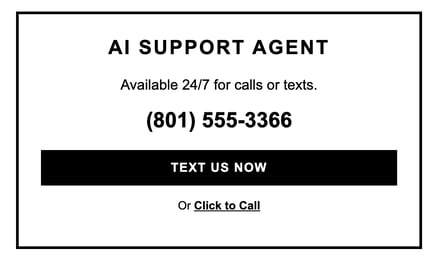
Web Team Resource: Give the code block below to your developers to add a styled "AI Support" box to your site. They can easily adjust colors and fonts to match your brand.
<div style="
    font-family: Arial, sans-serif;
    border: 3px solid #000000;
    padding: 25px;
    max-width: 400px;
    margin: 20px auto;
    background-color: #ffffff;
    color: #000000;
    text-align: center;
">
    <h2 style="margin-top: 0; font-size: 22px; text-transform: uppercase; letter-spacing: 2px; font-weight: 900;">
        AI Support Agent
    </h2>
    <p style="font-size: 16px; line-height: 1.4; margin: 15px 0;">
        Available 24/7 for calls or texts.
    </p>

    <div style="font-weight: bold; font-size: 24px; margin-bottom: 20px;">
        [INSERT NUMBER HERE]
    </div>

    <a href="sms:+1INSERTNUMBERHERE" style="
        display: block;
        background-color: #000000;
        color: #ffffff;
        text-decoration: none;
        padding: 12px 0;
        font-weight: bold;
        text-transform: uppercase;
        font-size: 14px;
        letter-spacing: 1px;
    ">
        Text Us Now
    </a>

    <p style="margin-top: 15px; font-size: 13px;">
        Or <a href="tel:+1INSERTNUMBERHERE" style="color: #000000; font-weight: bold;">Click to Call</a>
    </p>
</div>
Here is a preview of the element above:
Your Halda Phone and SMS Agents are now configured and ready to handle inbound calls and messages.
Need help with setup? Reach out to your Account Manager today to finalize your configuration!