![Halda Logo Black Tight-2.svg]](https://info.halda.ai/hubfs/Halda%20Logo%20Black%20Tight-2.svg)
The AI Audit tool in AI Training lets you systematically review the responses your AI assistant has generated, rate their quality, and turn high-value examples into Topic Instructions that guide future responses. Running audits regularly is the most direct way to improve how your AI answers questions over time.
This guide walks you through running an audit end-to-end, including how to rate responses and create Topic Instructions during the review.
Before You Start
You'll need:
- An account with AI Training enabled
- At least one Audit List set up (a saved collection of questions to test against). If you don't have one yet, you'll be prompted to create one when you start your first audit.
Step 1: Open AI Training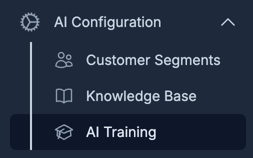
From the main navigation, go to AI Training. You'll land on the AI Training dashboard, which has four tabs across the top:
- Audit — start and manage active audits
- Reviewed Questions — your history of rated responses
- Feedbacks — feedback submitted by end users
- Manage Audit Lists — create and edit the question sets used in audits
Make sure you're on the Audit tab.
Step 2: Start a New Audit
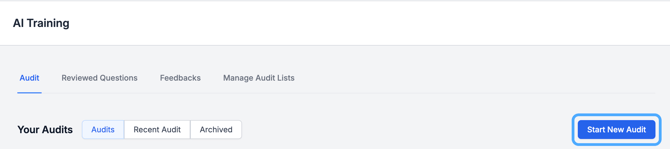
Click Start New Audit. The Start New Audit modal will open and prompt you to "Select the audit list you want to use."
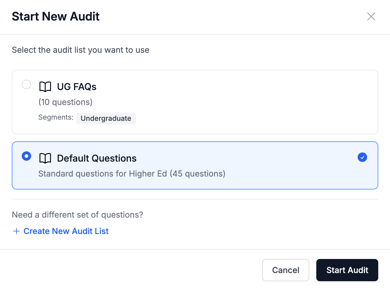
You'll see each audit list with:
- The list name
- The number of questions (e.g., "24 questions")
- The segments the list targets
Pick the list you want to audit, then click Start Audit.
No audit lists yet? The modal will show "No audit lists found" with a Create Audit List button. Click it to build your first list — define the questions you want the AI to be tested on, save the list, then return to start the audit.
Audit already running? The button will read "Audit Already Running". Wait for the active audit to finish, or open it from the dashboard.
Once you click Start Audit, you'll see "Audit has been started." and the system begins generating AI responses for each question in the list in the background.
Step 3: Review Responses
You'll be taken into the Q&A Pair Rating view, where the audit runs through each question one at a time.
While the AI is still working through the list, you'll see "Processing audit questions… Questions will appear here as they are processed." New Q&A pairs appear as they become ready — you don't have to wait for the whole audit to finish before you can start rating.
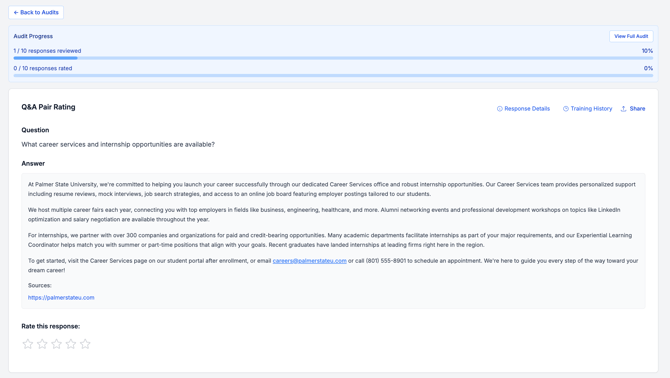
At the top of the page, an Audit Progress banner shows:
- "X / Y responses reviewed"
- "X / Y responses rated"
For each Q&A pair, you'll see:
- The student question the AI was asked
- The AI response that was generated
- Two helper buttons:
- Response Details — additional context about how the AI built the answer (sources, retrievals, etc.)
- Training History — prior training interactions on this topic
Use Previous and Next at the bottom of the page to move through the audit. You can also click View Full Audit from the progress banner to see the complete list at a glance.
If a response can't be evaluated, you'll see "Rating unavailable — the AI response was not recorded for this question." You can skip these and continue to the next pair.
Step 4: Rate the Response
Each response has a Rate this response: section with a 5-star scale.
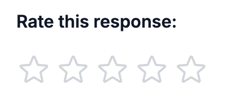
- 4–5 stars — the response is accurate, on-topic, and well-phrased.
- 1–3 stars — the response needs work. You'll see "Needs improvement", and the Training Feedback modal will open so you can capture the specifics.
Clicking a star opens the Training Feedback modal, which shows:
- Student Question — the original question, for reference
- AI Response — the response you're rating
- Rate This Response — your current star rating (e.g., "3/5"), adjustable
If the rating is low, tell the AI what was wrong
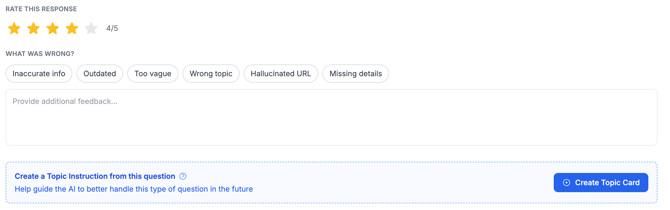
Under What Was Wrong?, select one or more reasons:
- Inaccurate info
- Outdated
- Too vague
- Wrong topic
- Hallucinated URL
- Missing details
Then use the "Provide additional feedback…" text area to add a free-form explanation — what specifically was off, and what the answer should have said. The more concrete you are here, the better the AI will learn from your feedback.
When you're done, click Submit Rating. To undo a rating, click Remove rating, then Confirm removal.
Step 5: Create a Topic Instruction
Topic Instructions are reusable guidelines that tell the AI how to handle a particular type of question. They're the most powerful training output of an audit — a few well-written instructions can correct dozens of future responses.
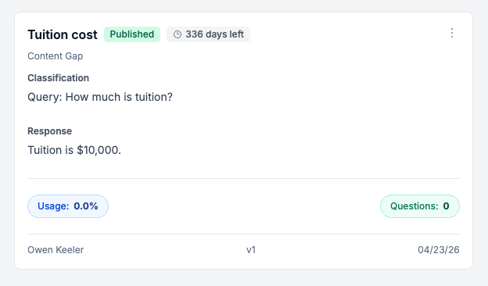
You'll be prompted to create one in two situations:
1) From a low-rated response (inside the feedback modal)

After you fill out the Training Feedback modal, scroll to Create a Topic Instruction from this question. The helper text reads:
"Help guide the AI to better handle this type of question in the future."
Click Create Topic Card to open the editor, where you can:
- Define the topic this instruction covers
- Write the guidance you want the AI to follow next time it sees a similar question
This is where you turn a one-off correction into a durable rule. If you'd rather just submit the rating without creating an instruction, click Skip.
2) From a high-rated response (5 stars)
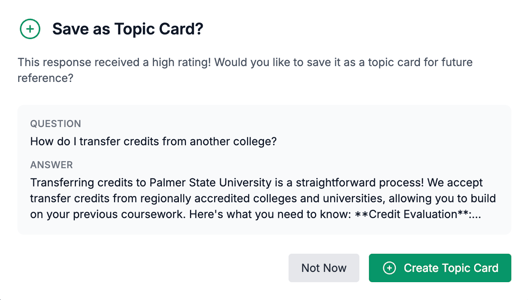
When you give a response a high rating, the Save as Topic Card? modal appears with the message:
"This response received a high rating! Would you like to save it as a topic card for future reference?"
It shows the Question and Answer side-by-side. Click Create Topic Card to save the exchange as a Topic Instruction the AI can reference going forward, or Not Now to skip.
Tip: Don't try to create a Topic Instruction for every question — focus on the ones that represent a pattern (e.g., "questions about transfer credits," "questions about housing deadlines"). One good instruction can cover many future questions.
Step 6: Finish the Audit
Keep moving through the list with Next. As you go, the progress banner updates the "responses reviewed" and "responses rated" counters in real time.
When you've reached the end, you'll see:
"All responses reviewed! Great job completing all unreviewed questions."
Your ratings, feedback, and any Topic Instructions you created are saved automatically and immediately become part of the AI's training context. You can revisit them anytime under Reviewed Questions.
Best Practices
- Be specific in feedback. "Wrong topic" + a one-sentence explanation is far more useful to the model than a star rating alone.
- Prefer Topic Instructions over one-off corrections. If you've corrected the same thing twice, it's time to write an instruction.
- Use Audit Lists strategically. Build lists around the question categories you care most about — admissions deadlines, program details, financial aid, etc. — so each audit produces focused, actionable training signal.
If you run into trouble or need help interpreting an audit, reach out to your Halda success contact.