![Halda Logo Black Tight-2.svg]](https://info.halda.ai/hubfs/Halda%20Logo%20Black%20Tight-2.svg)
The AI Hub is a personalized resource center embedded on your website that aggregates AI Forms, AI Search, and content cards into a single visitor experience. This article covers how to enable, configure, and publish the AI Hub.
Prerequisites
Before configuring the AI Hub, ensure:
- You have the Edit Hubs permission on your account
- At least one AI Form is created and published. The AI Hub needs published forms to display as hub steps
- The Halda script is installed on your website
Access the AI Hub Configuration Page
Navigate to your account and click the Hubs tab in the sidebar. The AI Hub configuration page has three tabs:
General Configuration
In the General Configuration tab, you will have access to metrics, inquiry records, and URL targeting.
Hub Metrics
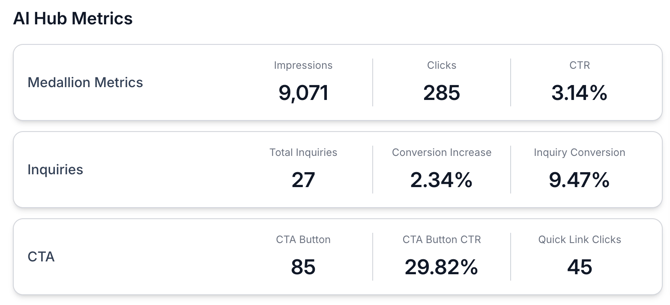
This dashboard shows key metrics: impressions, medallion clicks, inquiries, and CTA clicks.
Target URL Management
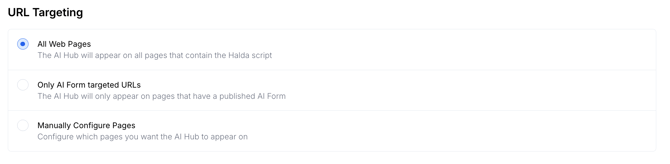
Controls which pages on your website display the AI Hub.
- All Web Pages (default): The hub appears on every page where the Halda script is installed.
- Only AI Form targeted URLs: The hub will only show on pages where an AI Form is published.
- Manually Configure Pages: The hub will appear only on specific webpages provided.
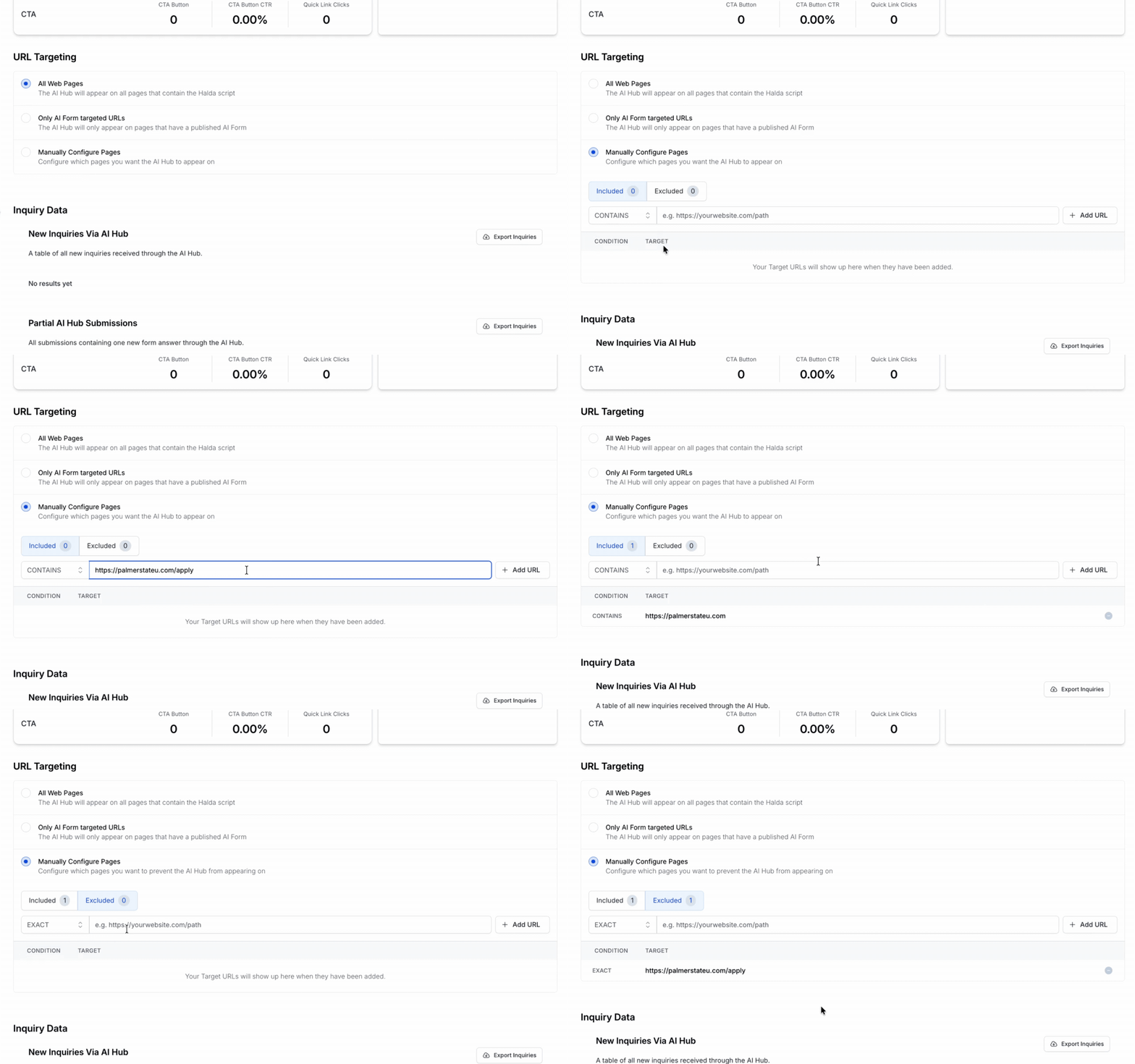
If you want the hub to show everywhere with the exception of a few URLs, you can use the following logic in the "Manually Configure Pages" option:
Included URL: Set this to a "Contains" URL and input your domain (ex. https://palmerstateu.com/)
Excluded URL: Add the URLs you do not want the hub to show on in this section.
Inquiry Data
Tables at the bottom of the General Configuration page show new inquiries and partial submissions received through the AI Hub (visible only to users with the View PII permission). You can export lead information through the "Export Inquiries" button.
Segment Configuration
The Segment Configuration tab allows you to personalize the hub experience per customer segment.
Customer Segments
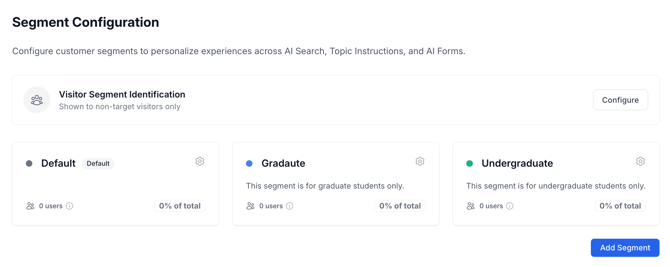
Create and manage segments with a name, description, and optional AI Search overrides (search source URL, excluded URL paths, and AI search context). For more information on full segment configuration, visit this article: Segment Configuration and Management
Stage Personalization (Dynamic CTAs)
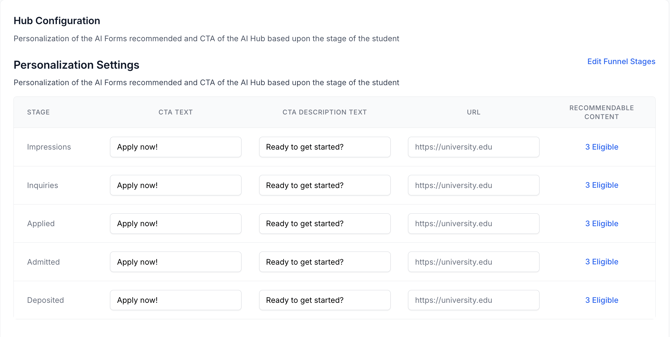
For each funnel stage (e.g., Impressions, Inquiries), configure:
| Field | Description |
|---|---|
| CTA Text | The call-to-action button text (e.g., "Apply Now") |
| CTA Description Text | Supporting text (e.g., "Ready to get started?") |
| URL | The destination URL when the CTA is clicked |
| Recommendable Content | Which AI Forms/content cards to show or exclude for this stage |
Important: All Dynamic CTA fields (CTA Text, Description Text, and URL) must be filled in for every funnel stage before the hub can be published.
Content-Based Recommendations
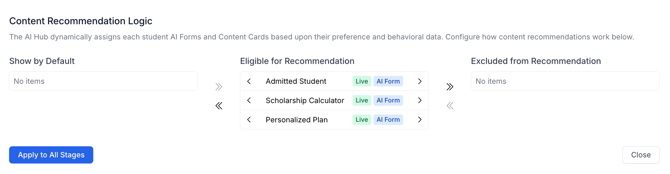
For each funnel stage, you can adjust which forms or content cards are shown in the "Recommendable Content" section of the Stage Personalization setup. You can move content into the following groups:
- Show by Default: When a user is in this specific stage, the form or content card will automatically show in the AI Hub.
- Eligible for Recommendation: If a user visits the URL where the AI Form is published to show, instead of seeing the form on the main page, it will show in the AI Hub.
- Exclude from Recommendation: When a person is in this specific stage, they will not have these forms or content cards available in their hub experience. An example of this could be opting to not show an Admitted Student form to a student who is still in the "Inquiry" stage.
Quick Links
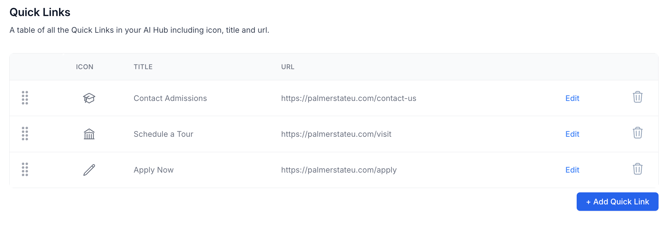
A table of resource links displayed in the hub, each with an icon, title, and URL. Quick Links are configurable per segment and can be reordered via drag-and-drop.
Branding
The Branding tab controls the visual appearance of the AI Hub.
Logo
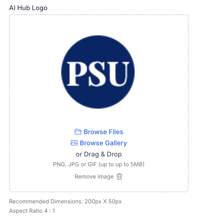
Upload a custom logo for the AI Hub. If no hub-specific logo is uploaded, the account-level logo is used.
Colors
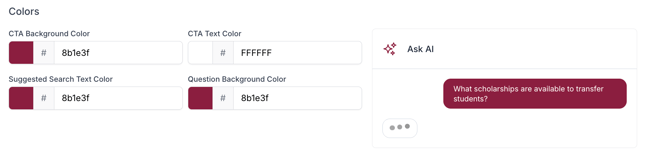
Configure the following color settings (hex values):
| Color Setting | Description |
|---|---|
| CTA Background Color | Background color of the CTA button |
| CTA Text Color | Text color of the CTA button |
| Suggested Search Text Color | Color of suggested search query text |
| Question Background Color | Background color of user questions in AI Search |
Medallion Configuration
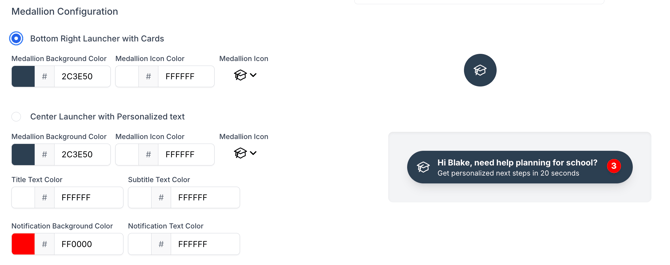
The medallion is the floating launcher button visitors click to open the hub. Two types are available:
- Bottom Right Launcher with Cards: A floating button in the bottom right corner that shows preview cards of hub steps on hover.
- Configure: Medallion Background Color, Medallion Icon Color, and Medallion Icon (from a picker of Heroicons).
- Centered Medallion: A centered launcher with additional customization options including title/subtitle text colors and notification badge colors.
After making changes, click Save to persist branding settings.
Configure Hub Step Cards (via AI Form Builder)
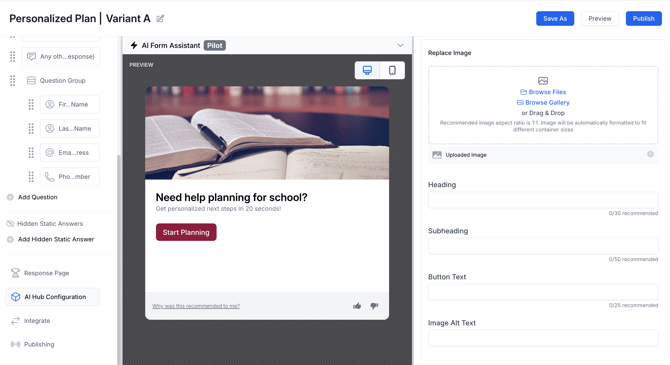
Each published AI Form automatically appears as a step card in the AI Hub. To customize how a form appears in the hub, go to the AI Form Builder and navigate to the Hub Configuration step:
- Heading (recommended: 30 characters)
- Subheading (recommended: 50 characters)
- Button Text (recommended: 25 characters)
- Image (upload a card image)
- Image Alt Text (provide alt text for the image)
Preview and Publish
At the top of the AI Hub configuration page, you'll find Preview and Publish/Unpublish buttons.
-
Preview is available when at least one published AI Form exists. It opens a preview of the hub overlaid on a sample target URL.
-
Publish makes the hub live on your website. Publishing is blocked if any Dynamic CTA values are empty.
-
Unpublish removes the hub from your website.
If you have any questions or need assistance with your hub configuration, reach out to your Account Manager.