![Halda Logo Black Tight-2.svg]](https://info.halda.ai/hubfs/Halda%20Logo%20Black%20Tight-2.svg)
Question Creation Methods
Users have two paths for adding content to a form:
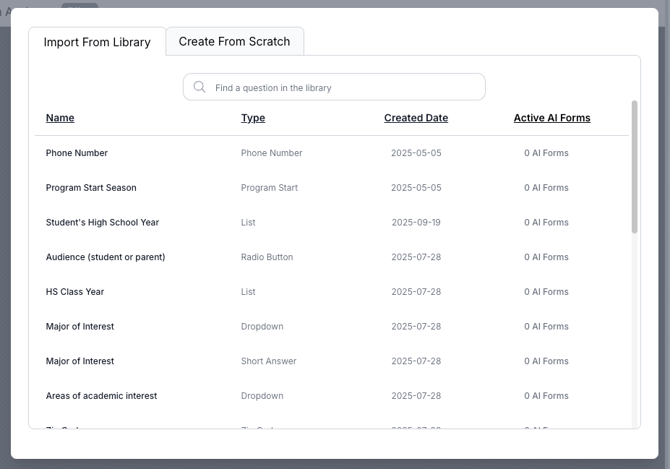
Import from Library: Accesses all questions from published forms across the school or university. This promotes data consistency and saves time through reusability.
Create from Scratch: Allows for the build of custom questions when the library does not contain the necessary field.
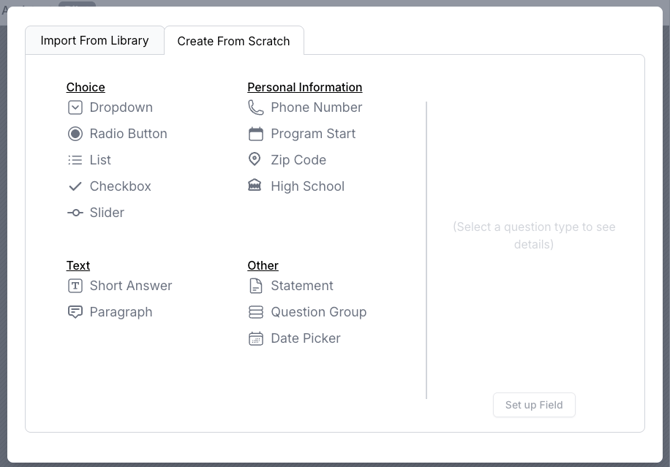
Question Type Definitions & Usage
Each question type is designed for a specific data need or visual requirement:
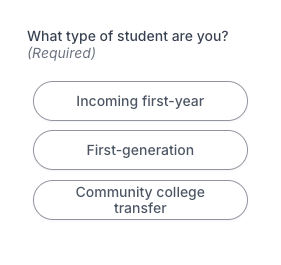
- Radio Button: Best for 1–4 options. If more than 4 options exist, this type should be avoided for better UI. (Note: Incompatible with Question Groups).
- List: Used for 5+ options. It includes a search bar at the top to help users navigate long lists.
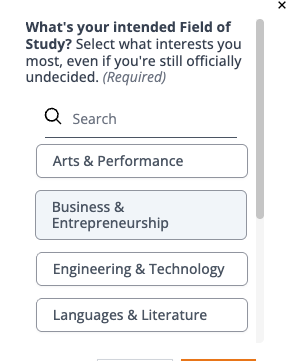
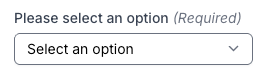
- Dropdown: Used for many static options while saving vertical space.
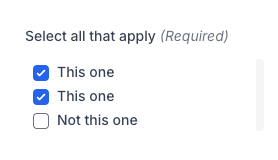
- Checkbox: The only multi-select option. It functions as a simple toggle for each item.
- Slider: Used for numeric inputs like GPA or for providing feedback on a scale.

- Short Answer: Standard single-line text input.

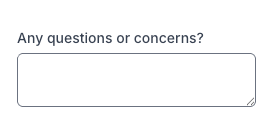
- Paragraph: Used for long-form text. The input box size is adjustable.
- AI Integration: Content in this field can be used to generate an AI response for the user at the end of the form.
- Statement: A non-question field used to provide feedback, instructions, or headers to the user.
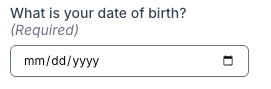
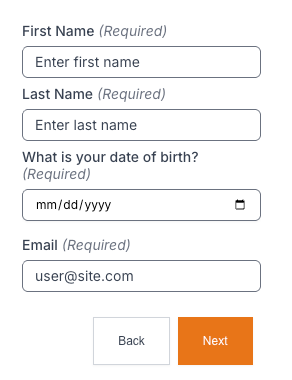
- Date Picker: Used for selecting specific calendar dates and time fields.
Specialized Data Fields
These fields are pre-configured for specific administrative data:
- Phone Number: Includes automatic format validation.
- Zip Code: Specifically for postal code data.
- High School: A text field for students to enter their graduated or expected high school.
- Program Start: Simplifies date entry. While a specific date is stored, the user sees a simplified Season and Year (e.g., Spring 2025).
Question Grouping
Question Groups allow you to cluster multiple questions together for better organization. However, they are limited to specific question types.
|
Compatible with Groups |
NOT Compatible |
|
Dropdown |
Radio Button |
|
Slider |
List |
|
Short Answer |
Checkbox |
|
Phone Number |
Paragraph |
|
Program Start |
|
|
Zip Code |
|
|
High School |
|
|
Date Picker |
|
|
Statement |
Conditionality
To ensure users only see the most relevant information, AI Form utilizes two types of conditional logic:
1. Conditional Logic Groups
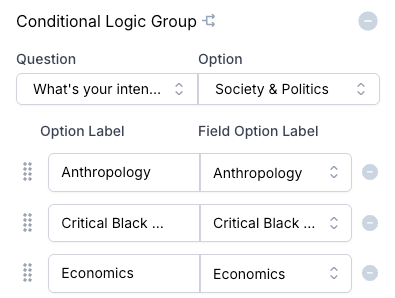
- Definition: This determines which specific answer choices are shown based on a previous question.
- Example: If a user selects that they are a Computer Science major, the next question dynamically filters to show only the different emphases available for that specific major.
- Trigger Rules: This logic requires a defined, selectable value to act as a trigger. It is only compatible with Radio Button, Dropdown, and List question types.
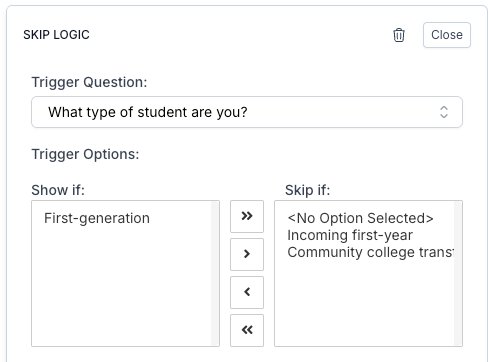
2. Conditional Skipping
- Definition: This allows the form to skip an entire question or section based on an answer.
- Example: If a question regarding documentation is only applicable to international students, the form can be set to skip that question entirely if the user identifies as a domestic student.
- Trigger Rules: Like logic groups, conditional skipping is only compatible with Radio Button, Dropdown, and List question types. Anything that is a form of free response (like Short Answer or Paragraph) is not compatible with this logic flow.